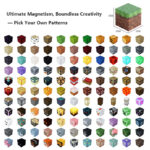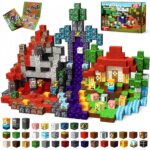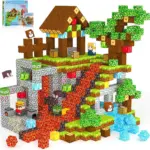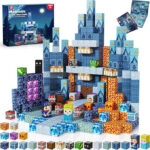
This guide is only for people who want to install and use the mod in Minecraft.
What This Mod Does
MagPix Builder adds:
- MagPix-style build blocks
MagPix ScannerMagPix Ground Scanner- CSV and JSON material export
It is meant for building in Minecraft and exporting a MagPix bill of materials.
Requirements
- Minecraft
1.21.11 - Fabric Loader
- Fabric API
- Java
21
Install
- Install Fabric for Minecraft
1.21.11. - Install Fabric API.
- Put the mod jar into your Minecraft
modsfolder. - Launch Minecraft with the Fabric profile.
Plugin file:
How To Find The Mod Items
Open Creative mode inventory and look for:
MagPix Buildertab
If you do not see it:
- use the search bar
- search
magpix - search
scanner
Main Tools
MagPix ScannerMagPix Ground Scanner
How To Use MagPix Scanner
Use this for a full 3D selection.
- Hold
MagPix Scanner. - Right-click one corner of the build to set
Point A. - Right-click the opposite corner to set
Point B. - The plugin scans the whole cuboid between those two points.
- A CSV and JSON file are exported automatically.
Use this when:
- your build has height
- you want exact corner-to-corner scanning
How To Use MagPix Ground Scanner
Use this for a ground rectangle.
- Hold
MagPix Ground Scanner. - Right-click one ground corner to set
Ground Point A. - Right-click the opposite ground corner to set
Ground Point B. - The plugin scans everything above that rectangle automatically.
- A CSV and JSON file are exported automatically.
Use this when:
- your build sits on flat ground
- you do not want to manually select the top corner
Selection Preview
The plugin shows particle previews:
- first click shows the first point
- second click shows a wireframe outline
This helps confirm the scan area before export.
Important Rule
The scanner only counts blocks from this mod:
magpixbuilder:*
It does not count normal vanilla Minecraft blocks.
Export Location
Exports are written to:
~/Downloads/magpix_exportson macOS and LinuxC:\Users\<your-name>\Downloads\magpix_exportson Windows
The plugin also prints the exact export file paths in the in-game chat.
Export Contents
CSV
- SKU
- Block Name
- Block ID
- Quantity
- Unit Price
- Subtotal
- Product URL
JSON
- total block count
- estimated total
- itemized block list
Tips
- If the result is
0, make sure your selection includesmagpixbuilder:*blocks. - If you use the normal scanner, do not select only one Y level unless you want a single layer.
- If the Creative tab is missing, search
magpix. - If the textures look outdated after replacing the jar, restart Minecraft.
Quick Start
- Start a Creative world.
- Open the
MagPix Buildertab. - Place MagPix blocks.
- Scan with one of the two scanners.
- Open
Downloads/magpix_exports.